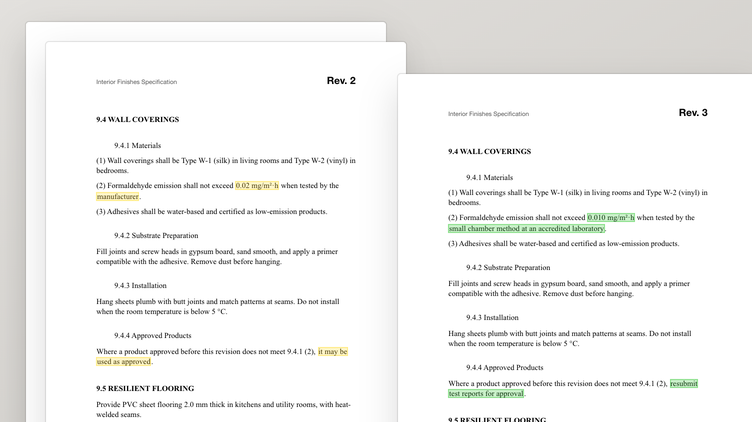
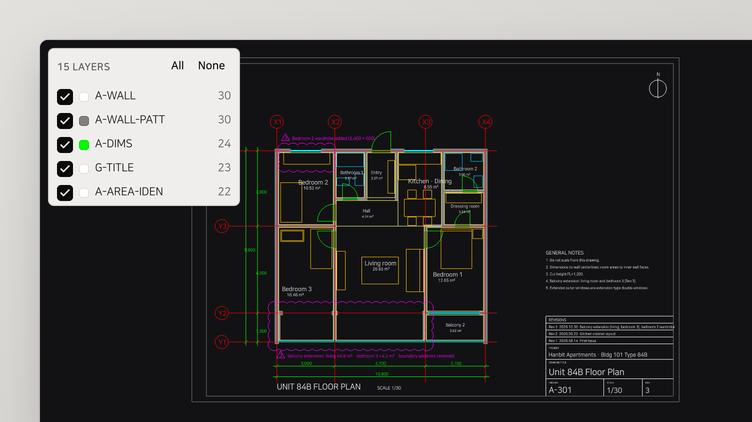
Finds the element in the model
and shows it in 3D
Searchdoc finds Revit model elements by level, category and type and checks them against the specification and site standards. Open any element from the answer in 3D.
Talk to Searchdoc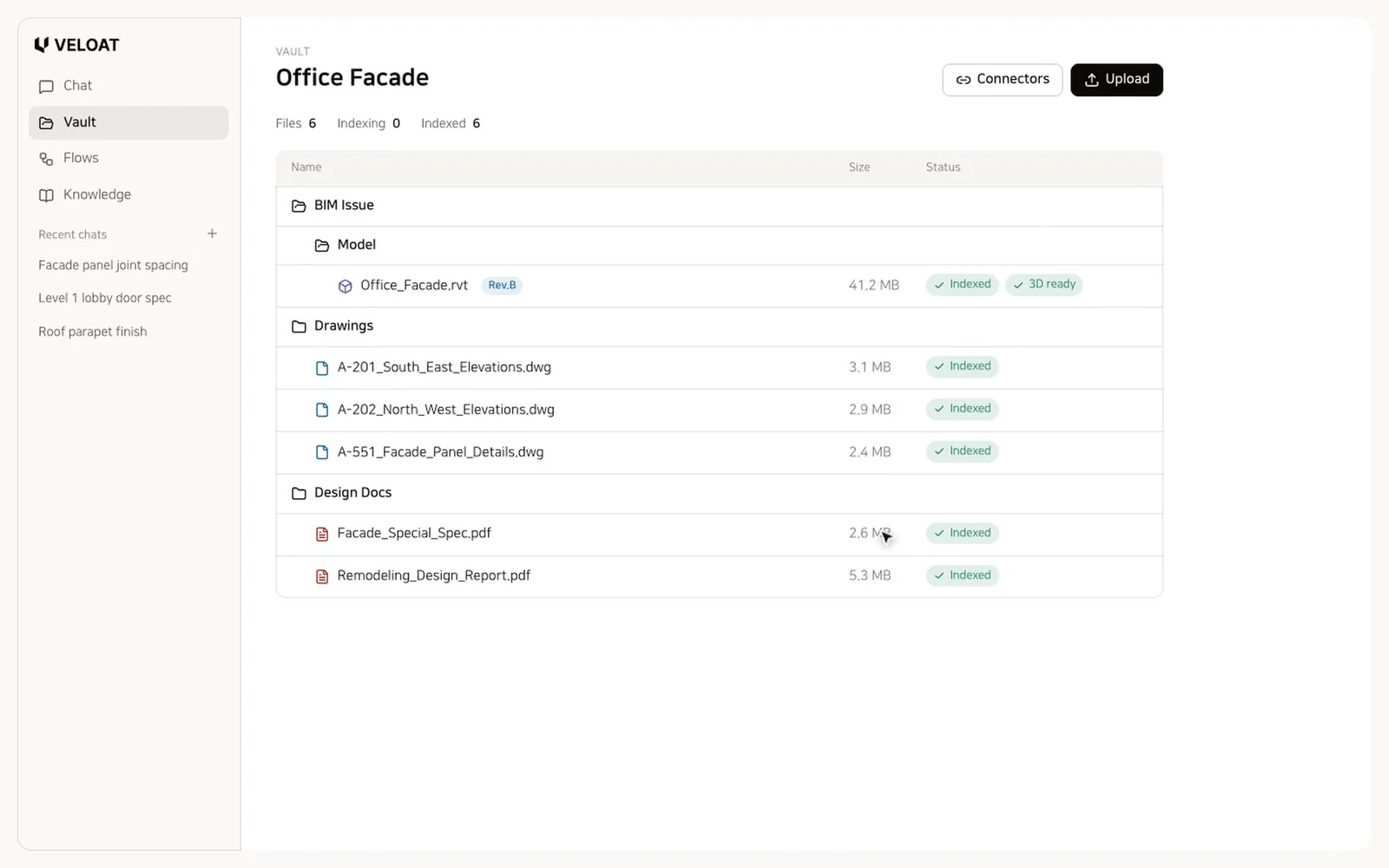
This demo is built on VELOAT, and its models and files are made up.
When one facade panel type changes, someone has to find the changed panels in the model, count them by level and side, and compare revisions to make sure none were missed. Searchdoc finds and counts the elements that changed between revisions and shows the ones in the answer in 3D.
01
Cites model elements and document clauses together
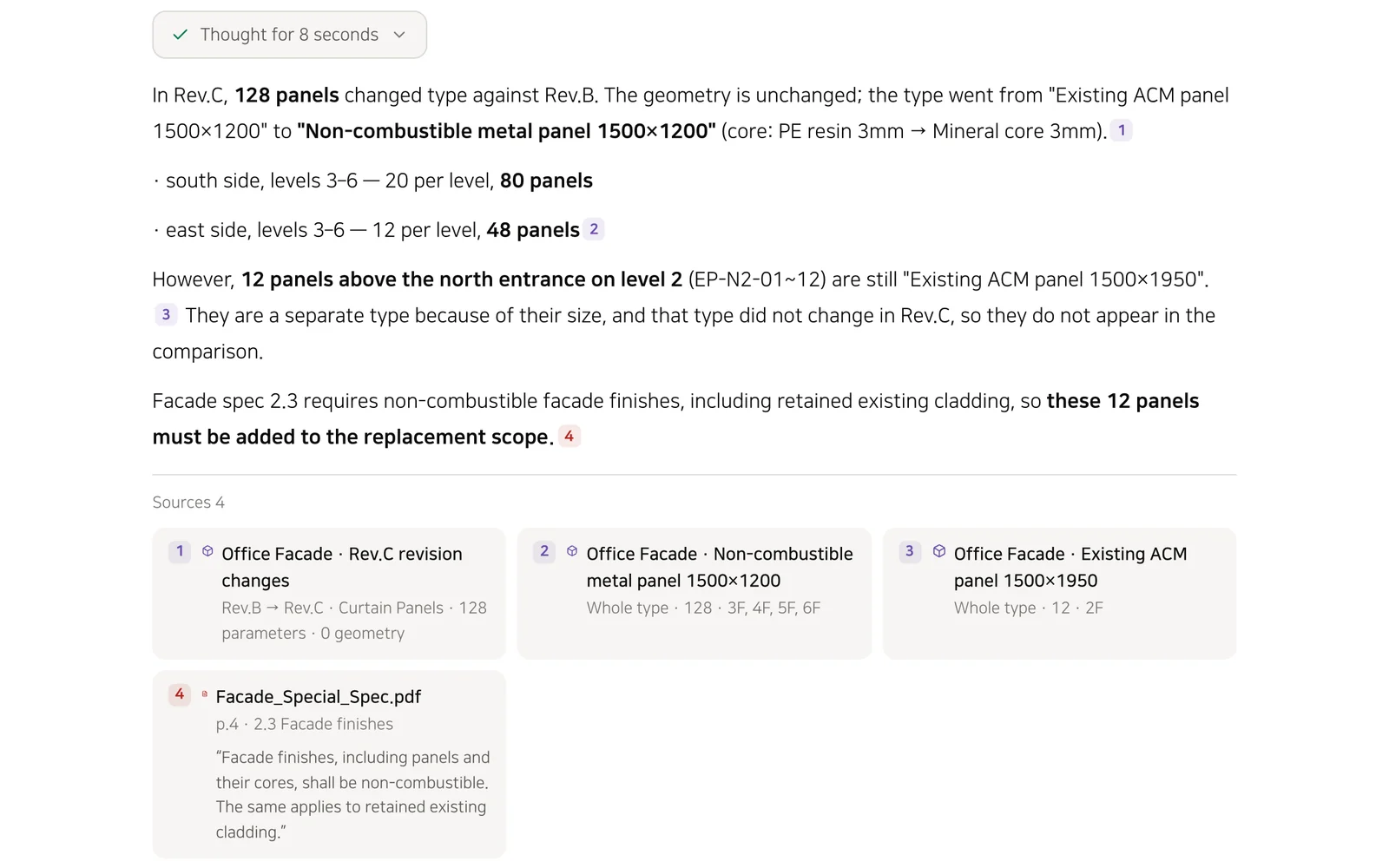
It finds element properties and the related clauses in the specification and site standards, combines them in one answer, and gives each its own source number.
Level · Category · Type
Each element's level, category, type, family name and numeric properties are indexed, so everyday questions like "level 3 fire doors" work.
Count and break down
Counts matching elements by level and type.
02
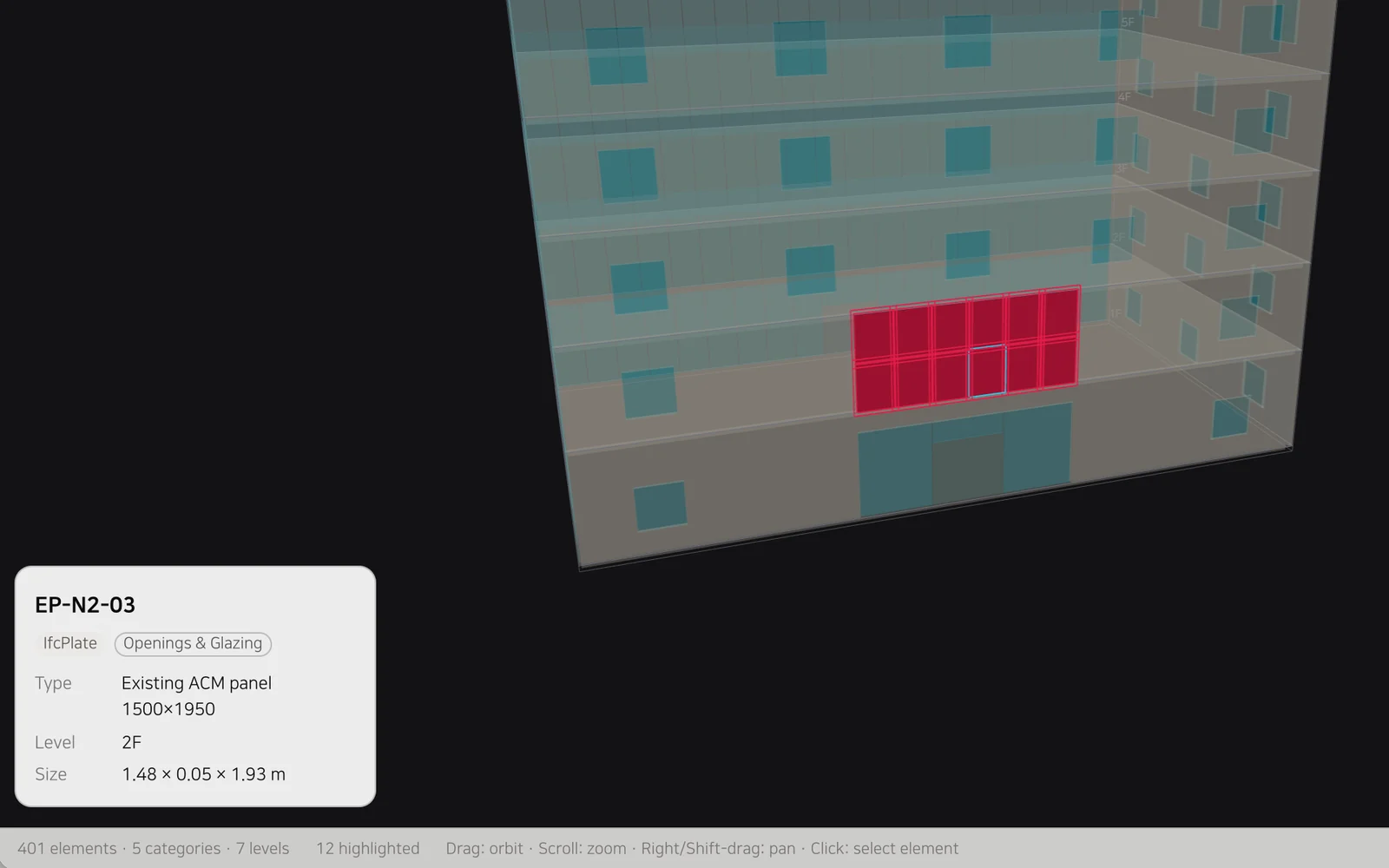
Open elements from the answer in 3D
In Open 3D, pick each cited element and the camera moves to it. Click an element to see its name, classification, type, level and size on a card.
03
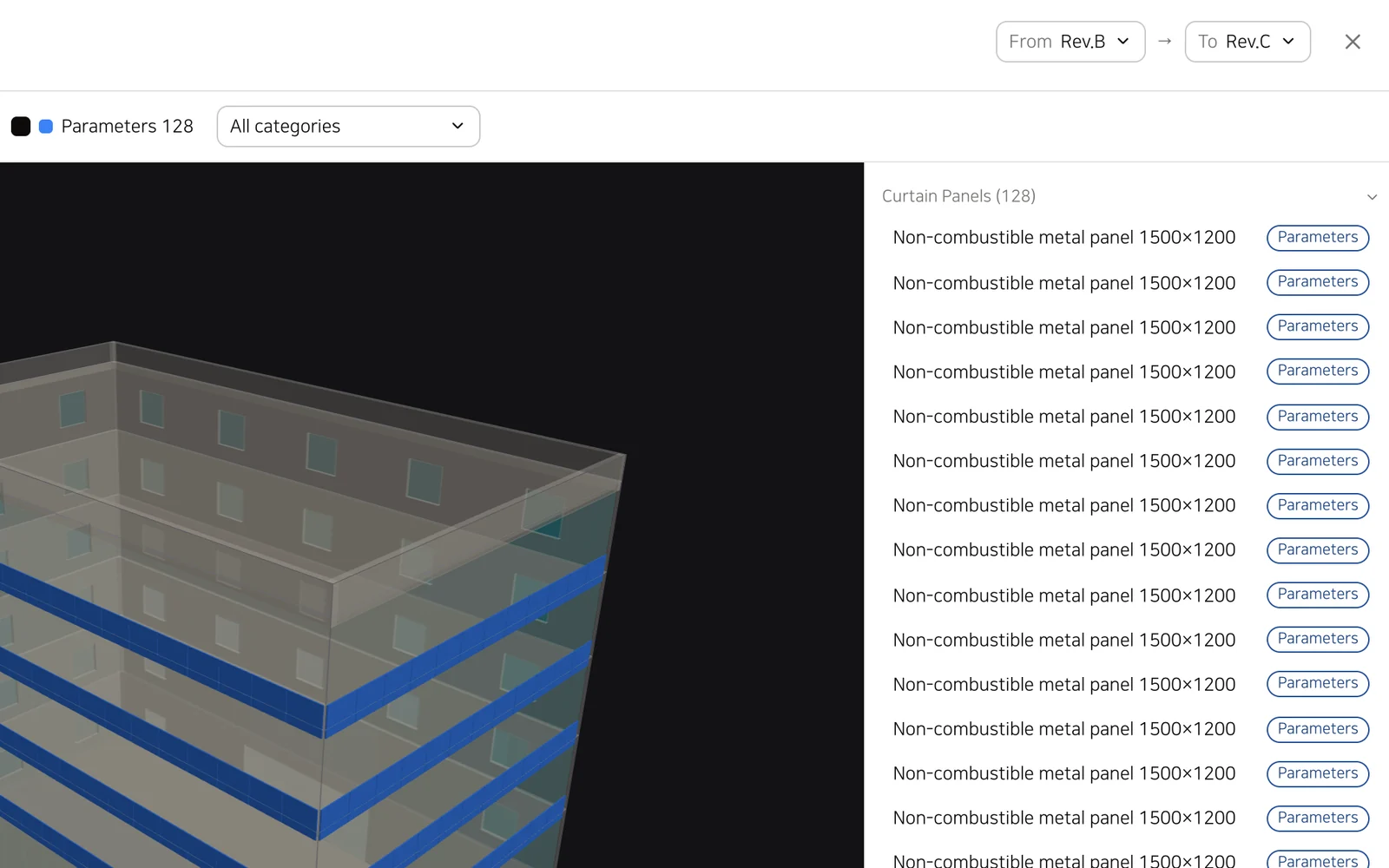
Upload a new revision and compare the changes in 3D
Upload the same RVT again and its revision goes up. Elements added, deleted or changed in geometry or properties are recorded, and the compare view colors them by change type in 3D.
Revision ranges
See changes across several revisions at once, such as Rev.A through Rev.C.
Drawing overlay
Overlay a DWG drawing from your vault on the model.
Use cases
How teams use it
Fire rating check
Check whether door and wall fire ratings meet the specification and site standards.
Example questionCheck whether the fire ratings of the level 3 stair doors and the room 3-5 entrance meet the specification and site standards, and show them in 3D.
Design change tracking
List what changed between revisions and view it in 3D.
Example questionList the facade panels that changed between Rev.B and Rev.C of the office model by level and side, and show them in 3D.
Quantity check
Count matching elements by level and type.
Example questionCount the doors on level 3 by type.
Space check
Find the walls, doors and furniture in a room and view them in 3D.
Example questionShow the walls and doors of room 3-5 in 3D.