Answers that point to
the spot on the drawing
Searchdoc finds and reads symbols, notes and legends in DWG drawings and checks them against the specification. Open the drawing and the cited objects are already highlighted.
Talk to Searchdoc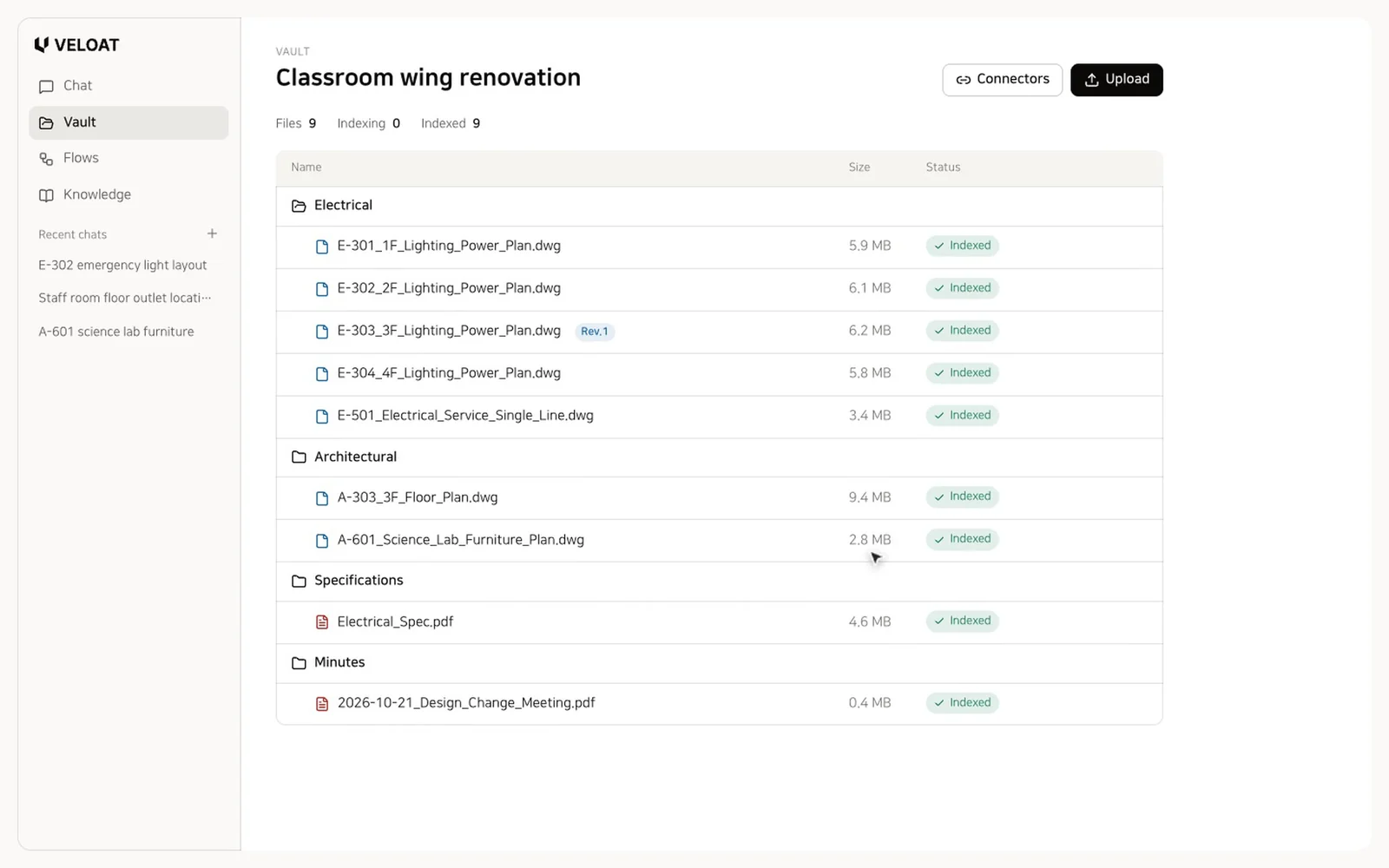
This demo is built on VELOAT, and its models and files are made up.
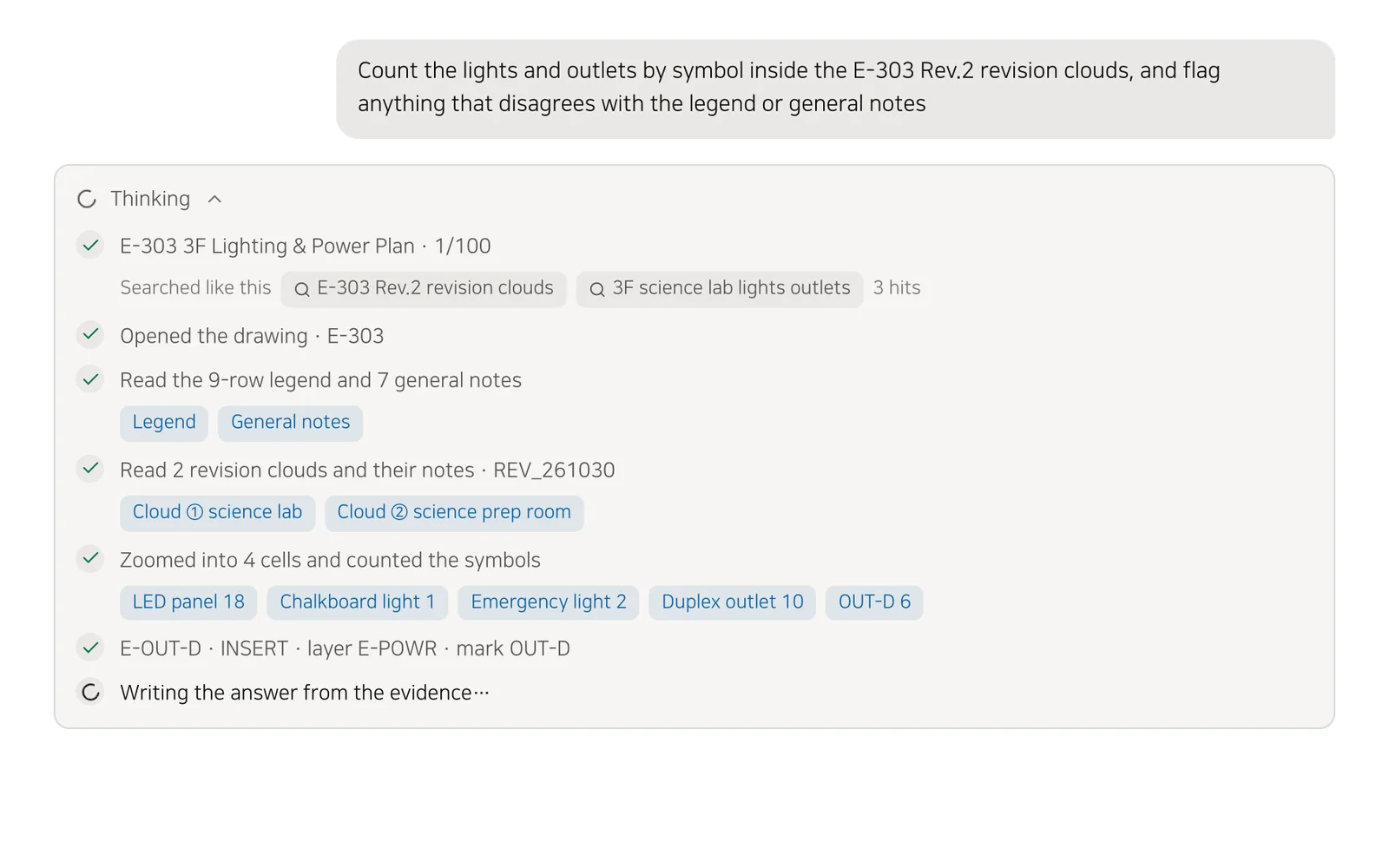
Checking one outlet means finding the drawing, zooming into the area, reading the legend and notes, and opening the specification. Searchdoc takes the same steps for you and shows each one in the thinking panel.
01
Reads a drawing in the order a person does
It finds and opens the drawing, picks an area, and reads the objects and text inside. When needed, it also finds the specification and checks against it.
Looks at the sheet as an image
The AI looks at the sheet image directly to pick the area to check.
Reads the area as data
Blocks, text and dimensions in the area are read straight from the values stored in the DWG.
Title blocks and tables
Title blocks and schedules are read as tables, so drawing numbers and equipment specs can be found row by row.
02
Cited objects open highlighted
Click Open drawing and each citation gets a tab. Pick a tab to zoom in on that object.
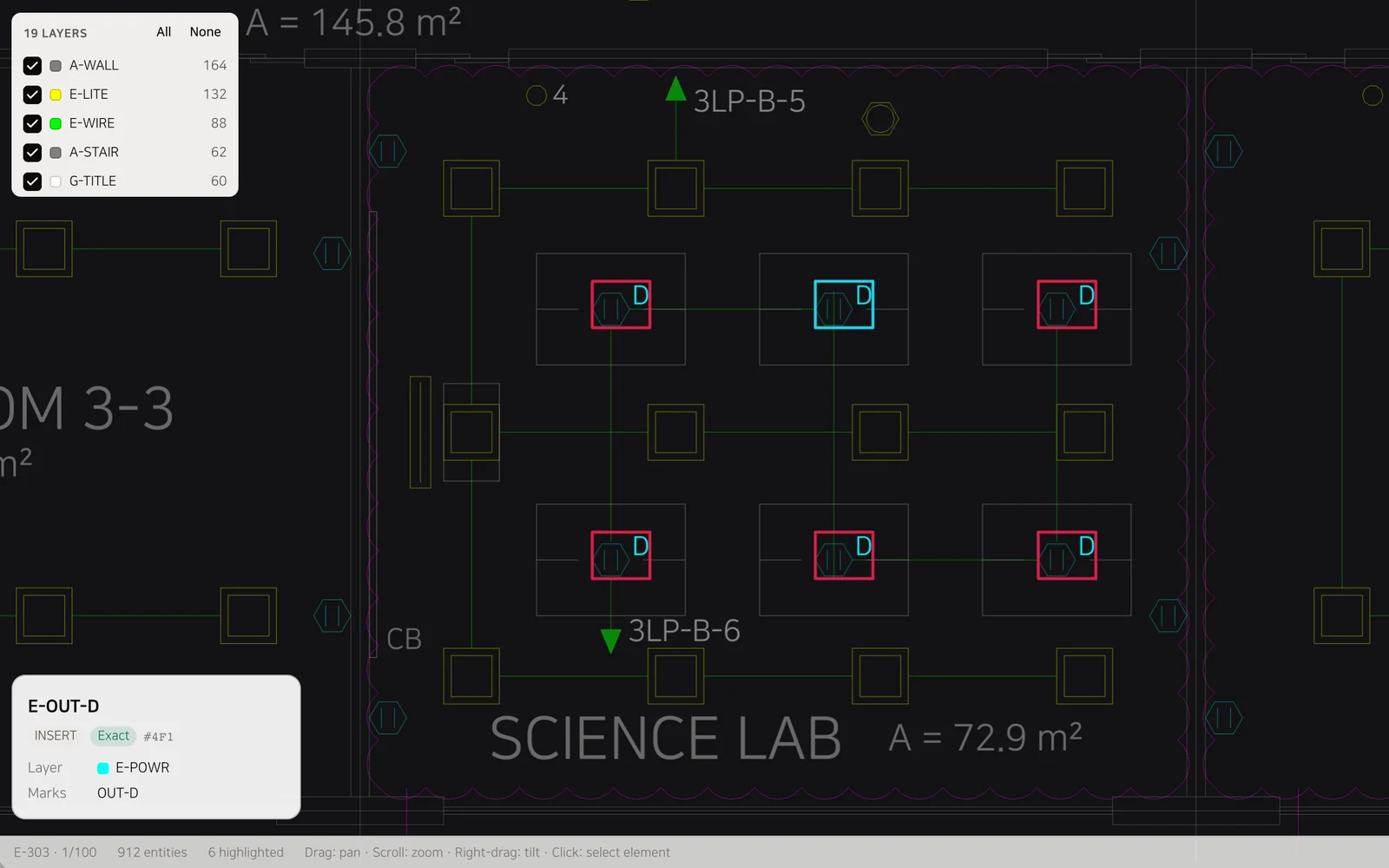
Element card
Click an object to see its value, type, handle, layer and block name on a card.
Layers
Each layer shows its object count. Turn layers off and on to clear overlapping lines.
03
DWG uploads are indexed object by object
Searchdoc opens each DWG in AutoCAD and indexes its objects, layers, blocks, external references, title blocks and tables. Search drawings by their text or block attributes.
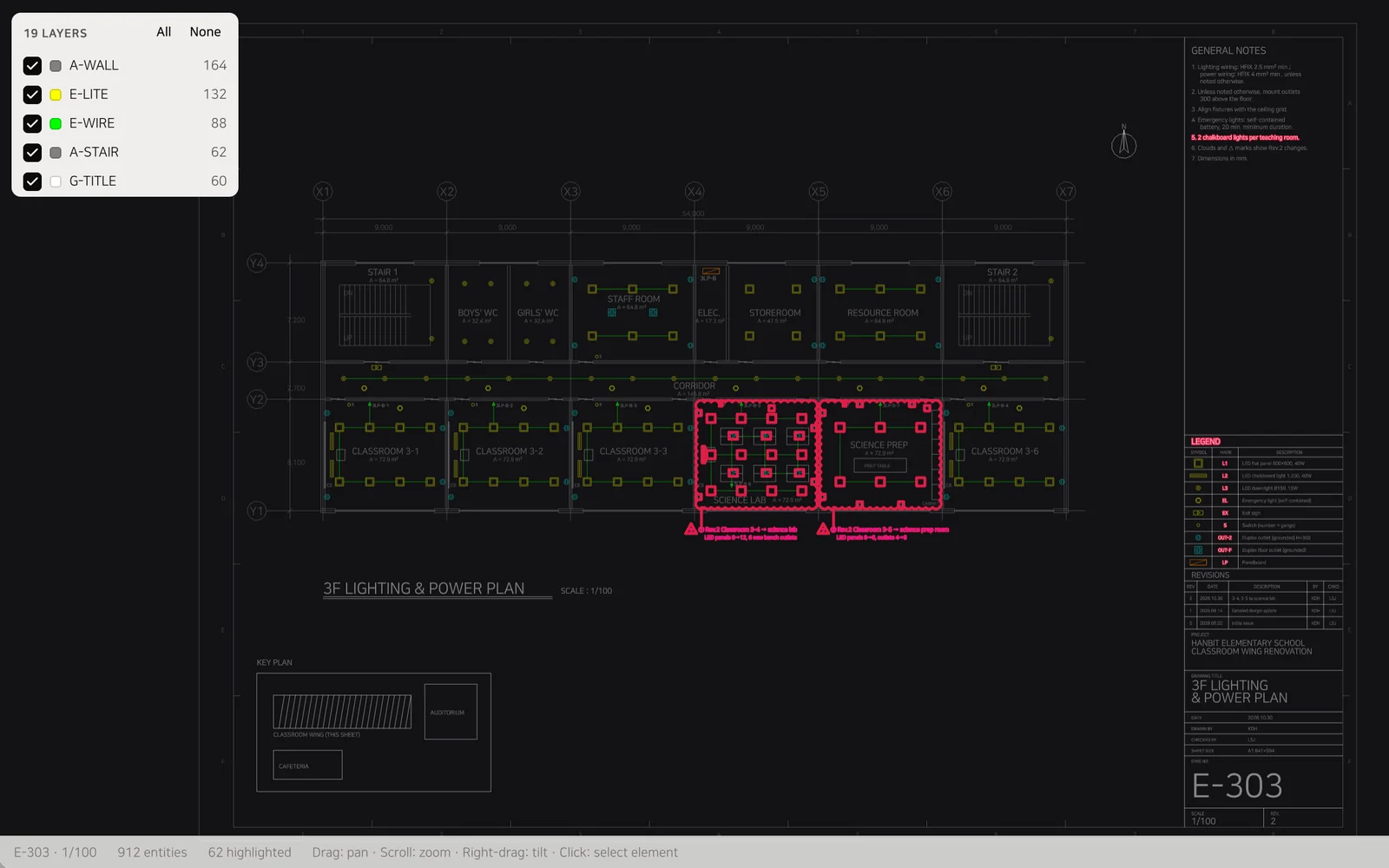
Supported formats
Object-level indexing supports DWG today. PDF drawings are searched as documents.
Use cases
How teams use it
Revision check
Find the changed objects and related notes on a revised drawing.
Example questionCount the lights and outlets inside the revision clouds on E-303 Rev.2 by symbol.
Criteria check
Compare fixture counts and layouts on the drawing with the general notes and the specification.
Example questionDoes the number of chalkboard lights in the science lab meet general note 5 and the electrical specification?
Legend check
Find symbols or labels that are not in the legend.
Example questionAre there any symbols on E-303 that are missing from the legend?
Schedule lookup
Find sizes and quantities in a schedule by tag.
Example questionFind the size and quantity of W-12 in the A-601 window schedule.